LabPanel
Your homelab’s web interfaces in one Mac window.
UniFi, Synology DSM, Proxmox, Home Assistant, AdGuard Home and any other web interface, one tab per service in a native window. Pages stay alive between tabs, each service keeps its own sign-in, and a dot tells you whether it responds.
LabPanel shows the web interfaces of services you already run; it isn’t affiliated with Ubiquiti, Synology, Proxmox, Home Assistant or the other services it opens.
- Version
- 0.2.2
- Requires
- macOS 26
- Interface
- EN · FR
- Engine
- WebKit
- License
- MIT
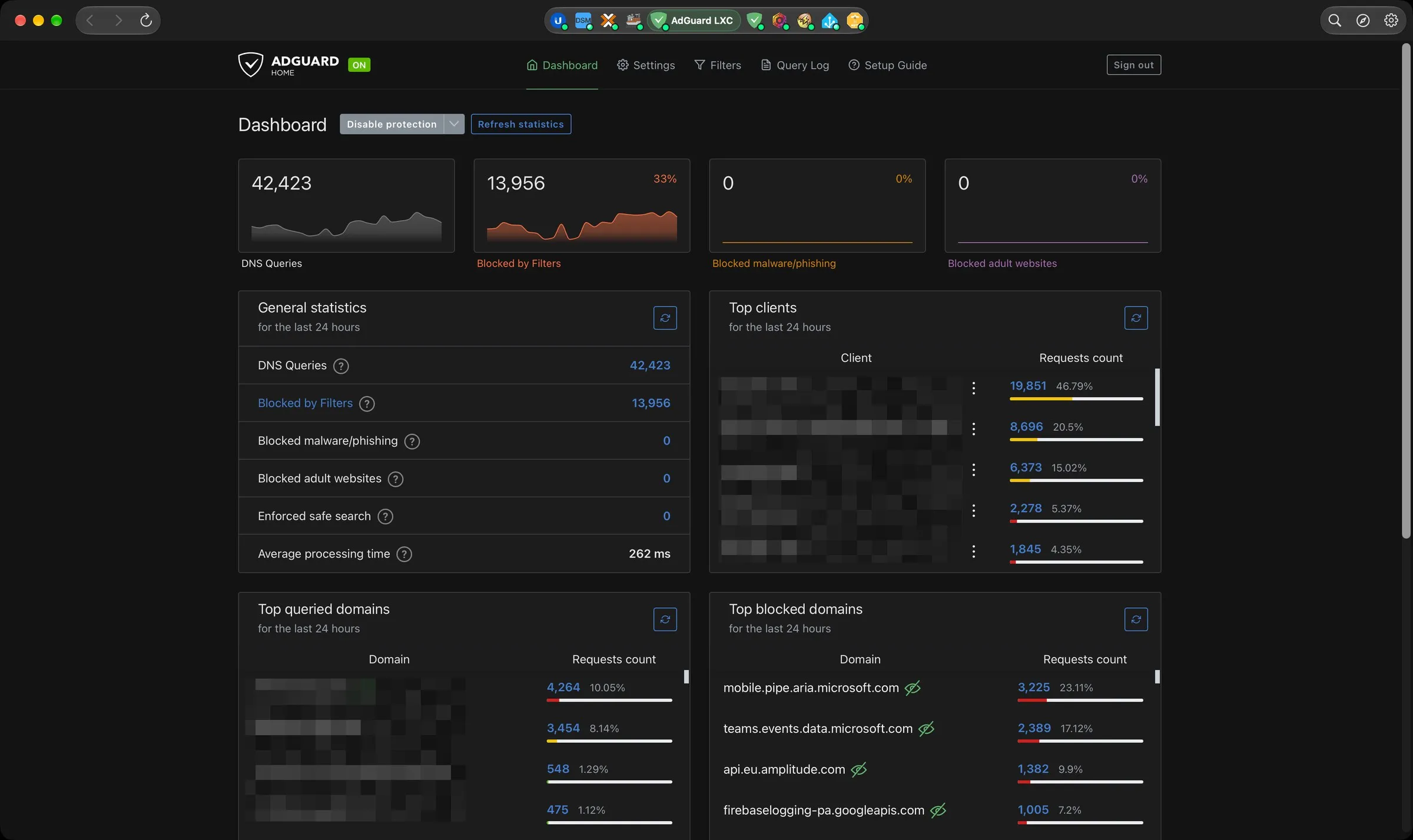
One tab per service
A glass tab bar in the title bar, macOS 26 style: each service has its official icon and color, only the open tab shows its name, and the highlight slides from one tab to the next.
- Nine services ready to go: UniFi, DSM, Proxmox, Dockhand, AdGuard, NPM, NUT, Home Assistant and Zigbee2MQTT, plus your own.
- ⌘1 … ⌘9 to jump to a tab, ⌃⇥ for the next one.
- Right-click a tab to reload, go home, open in your browser, copy the address or hide it.
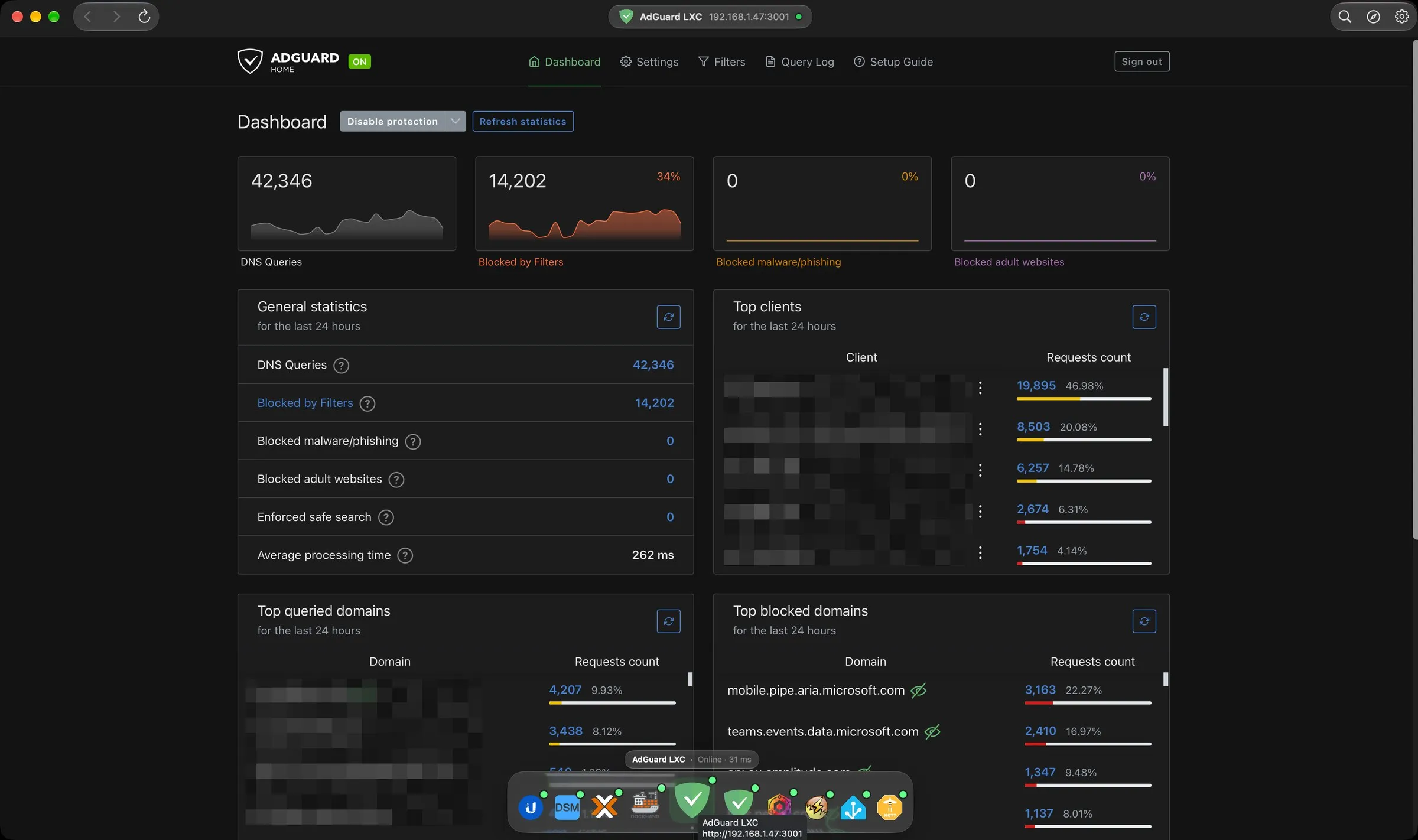
Or a floating dock
Prefer the tabs at the bottom? A floating glass dock, with icons that grow under the pointer like the macOS Dock and each service’s name and status above its icon.
- Hides itself and shows up when the pointer reaches the bottom of the window, or stays visible.
- Switch between capsule and dock in Settings › General.
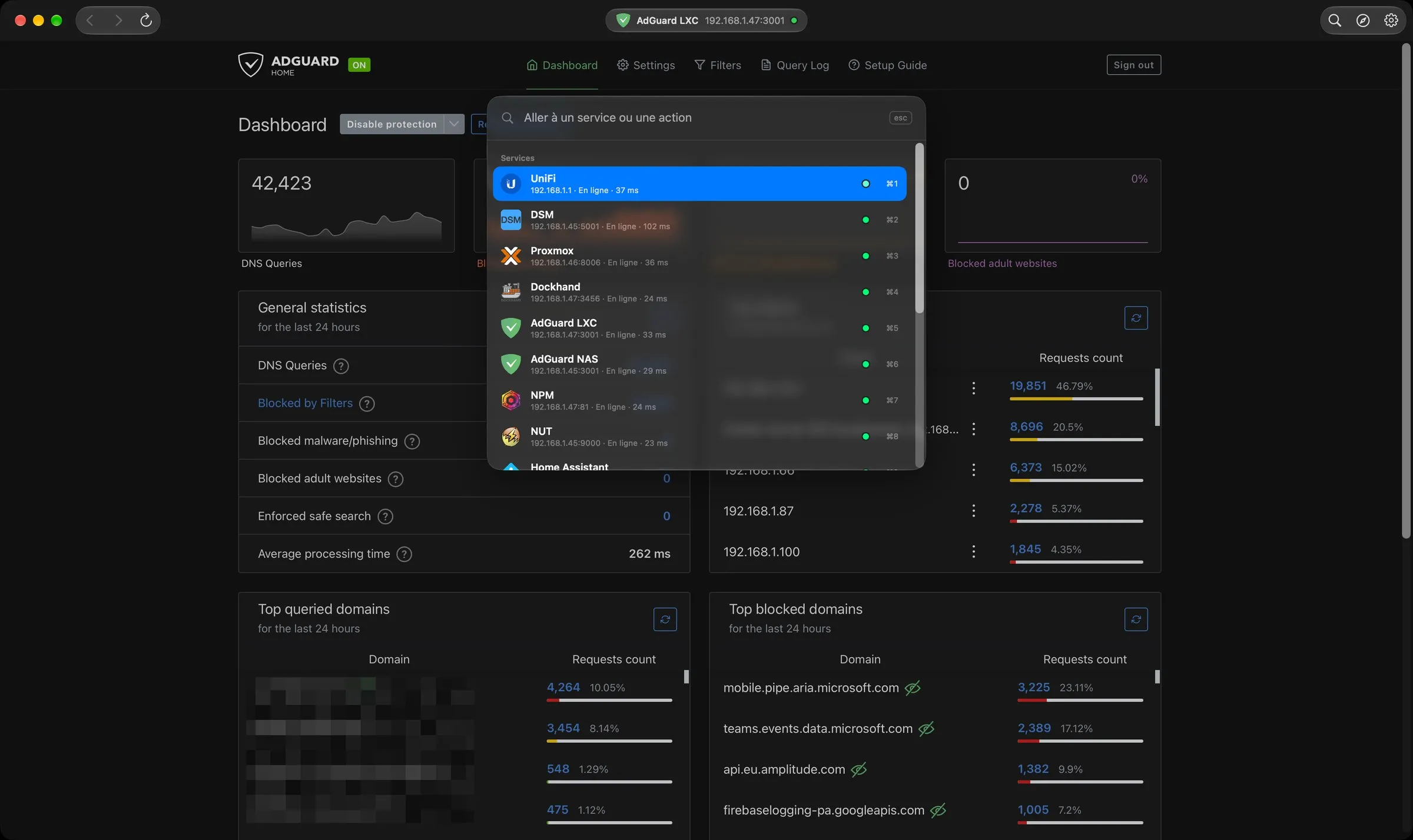
Anywhere in a few keystrokes
Press ⌘K, type a few letters (prox, ha for Home Assistant, part of an address), Enter, and you’re there.
- Also offers the common actions for each service: reload, fill login, open in browser, unload, edit.
- Its shortcut can be changed in Settings › General, so ⌘K stays free for pages that use it, like Dockhand.
Pages that stay alive
Switching tabs doesn’t reload anything: you find Proxmox, Home Assistant or DSM exactly where you left them, and each service keeps its own cookies, so two services on the same NAS don’t sign each other out.
- Pop-up windows (Proxmox’s noVNC console…), downloads, file uploads and HTTP passwords work as in a browser.
- Inactive tabs can be unloaded to free memory and reopen at the same page; Proxmox is exempt by default.
- Page zoom per service, and light or dark mode passed on to pages that support it.
Signed in, and staying that way
For services that keep signing you out, LabPanel can fill the login form with credentials stored in your Mac’s keychain, and submit it if you like.
- Handles Proxmox, DSM’s two-step login and Home Assistant’s Shadow DOM forms.
- Logins are only given to pages on the service’s own host; after a failure, nothing is submitted again for two minutes.
- Self-signed certificates (Proxmox, DSM, UniFi) are accepted for that service’s host only.
Is it up?
Once a minute, and when the Mac wakes up, LabPanel checks that each service responds: green dot if it does, orange if its certificate isn’t accepted, red if nothing answers.
- The tooltip shows the response time. Can be turned off in Settings.
Your services, your way
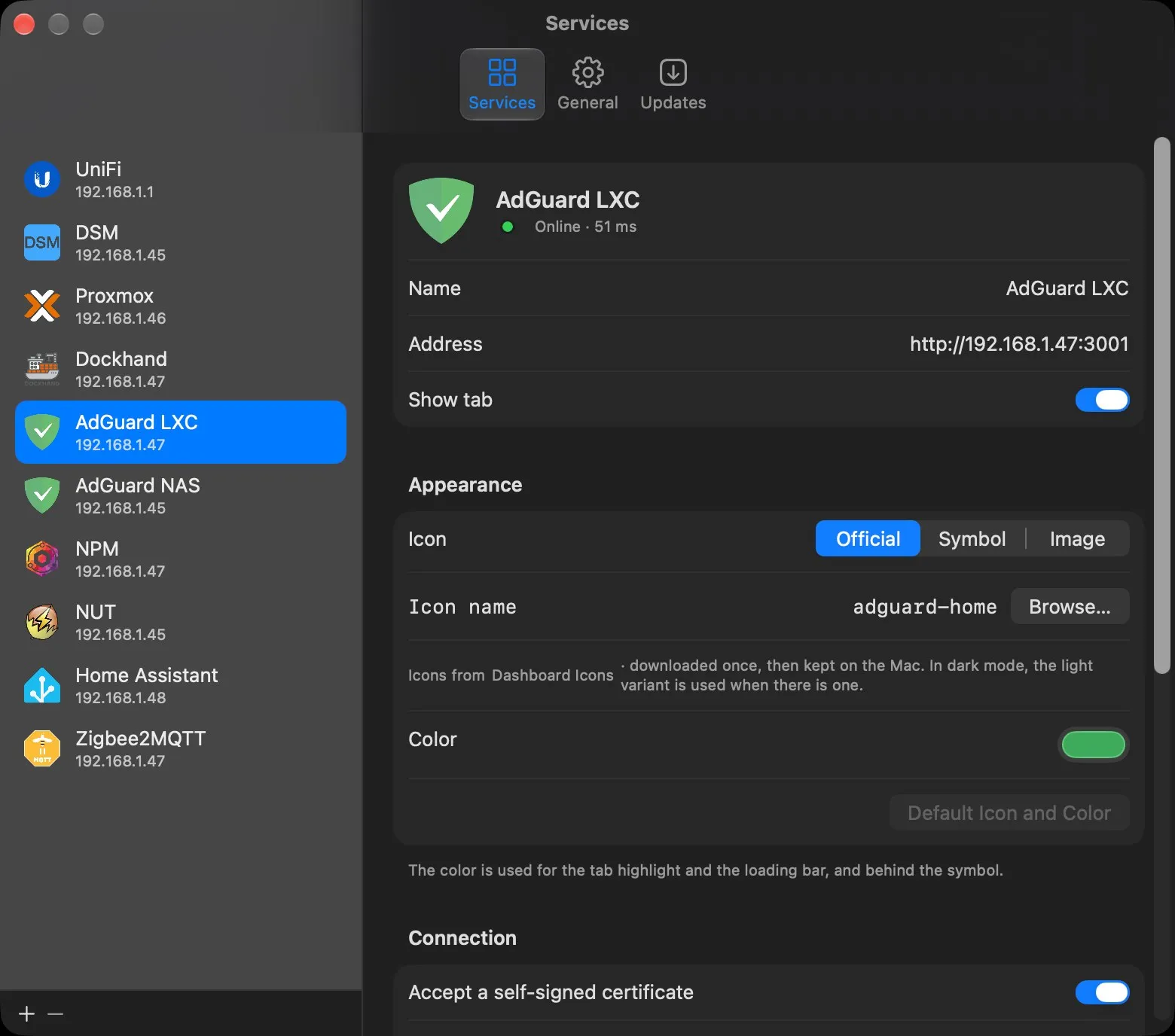
Add as many services as you like, reorder or hide tabs, and give each one a name, an address, a color and an icon.
- Official icons from Dashboard Icons (3,000+, with search), any SF Symbol or your own image.
- Clear one service’s cookies and data without touching the others.
- Light, dark or automatic appearance, English or French interface.
Three steps, one time.
Your permissions and settings are kept from one version to the next.
- Download
LabPanel-0.2.2.dmgfrom the latest release. - Open it and drag LabPanel onto the Applications folder.
- Allow it once. LabPanel is signed but not notarized by Apple, so macOS blocks the first launch. Open System Settings › Privacy & Security and click Open Anyway.
After that, LabPanel updates itself: it checks for a new version once a day and offers to install it.
xattr -dr com.apple.quarantine /Applications/LabPanel.appNo account, no analytics, no tracking.
LabPanel collects nothing and sends nothing about you. It only opens your services at the addresses you enter, checks that they respond, downloads their official icons once and checks for its own updates on GitHub. Saved logins stay in your macOS keychain.
Built with Claude
I come up with the ideas, make the design decisions and test every version on my own machines. Much of the code is written with Claude, Anthropic’s AI assistant. I’d rather say so upfront.